
- Checkbook Register
- Open QFX, OFX and QIF files
How to open QFX, OFX and QIF files without Quicken
Updated November 5, 2026 · Macon Apps
When you download transactions from your bank's website, you're usually offered a choice of formats: Quicken (QFX), Microsoft Money (OFX), QIF, or a spreadsheet (CSV). Here's what each one is, which to pick, and how to open it on Windows without buying Quicken.
The four bank download formats
| Format | What it is | Opens in |
|---|---|---|
| OFX (.ofx) | Open Financial Exchange, the standard format for bank transaction downloads. Often labelled "Microsoft Money" on bank sites. | Finance apps, Checkbook Register Pro |
| QFX (.qfx) | Quicken's branded version of OFX. Same transactions with a few Quicken-specific fields. | Quicken, Checkbook Register Pro |
| QIF (.qif) | Quicken Interchange Format, an older plain-text format still used for exports from finance programs. | Many finance apps, Checkbook Register Pro |
| CSV (.csv) | A plain spreadsheet of rows and columns. Every bank lays it out a little differently. | Excel, Checkbook Register Pro |
Which should you choose? If your bank offers QFX or OFX, pick that: the files carry a unique id for each transaction, which makes duplicate detection reliable. Use CSV when you want to look at the data in Excel.
How to download the file from your bank
- Sign in to online banking and open the account.
- Look for Download, Export or a download icon above the transaction list.
- Choose a date range. Start the day after your last import or last reconciled statement.
- Choose the format: Quicken (QFX), Microsoft Money (OFX), QIF or CSV.
- Save the file somewhere you'll find it, such as Downloads.
How to open it in Checkbook Register
- Install Checkbook Register from the Microsoft Store and unlock Pro (US$7.99 once).
- Choose Import in the sidebar and pick the file, or drag it onto the drop box.
- Check the preview. New transactions are listed for import; anything that matches an entry you already typed is shown as a match and will simply be marked cleared.
- Import. Your register and running balance update, and the matched entries are ready for reconciliation.
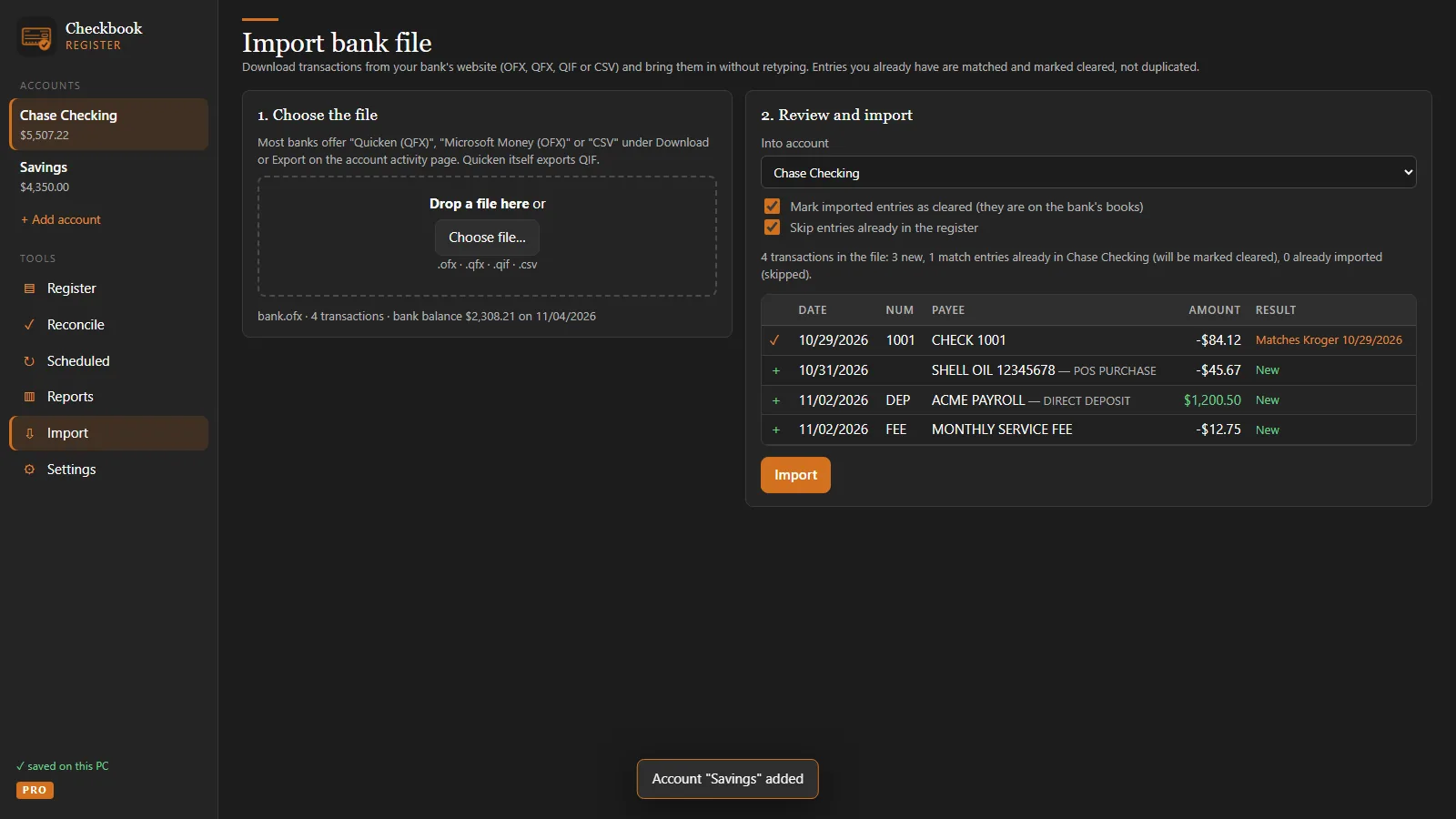
The file is read entirely on your PC. Checkbook Register never uploads it and never connects to your bank.
Other ways to look inside the file
- Notepad. OFX, QFX and QIF are all text files. Right-click, choose Open with → Notepad, and you'll see the transactions as tagged text: amounts after
<TRNAMT>and payees after<NAME>in OFX/QFX, or lines starting withT(amount) andP(payee) in QIF. Handy for a quick look, not for keeping records. - Excel. Excel doesn't read OFX or QFX. Download CSV from your bank instead, or import the QFX into Checkbook Register and use Export CSV to get a clean spreadsheet with consistent columns.
Common problems
- "Unrecognized file" or nothing imports: make sure the file wasn't saved as a web page (.htm). Some browsers rename downloads; the file should end in .qfx, .ofx, .qif or .csv.
- Amounts have the wrong sign in a CSV: banks differ on whether payments are negative or have their own column. The CSV import lets you choose which column is which.
- Overlapping date ranges: not a problem. Transactions already in the register are matched, not duplicated.
Questions
What is the difference between QFX and OFX?
OFX (Open Financial Exchange) is the industry format for bank transaction downloads. QFX is Quicken's branded version of OFX with a few extra fields; the transactions inside are the same.
Can I open a QFX file in Excel?
Not directly. Excel does not understand OFX/QFX. Download a CSV from your bank instead, or import the QFX into Checkbook Register Pro and export the register to CSV.
Is it safe to open a bank file in Checkbook Register?
Yes. The file is read entirely on your PC. Nothing is uploaded and the app never connects to your bank.